•If this is your first time using Vertex, then this is your quick start guide.
•Destinations is a fast-lane feature expediting basic tasks.
•Position and route your content from Canvas to Output with a Destination.
•This simplified workflow in 5 easy steps will have your content displayed in your video output in less than 1 Minute and not more than 11 clicks.
Start From Scratch
1.start Vertex and from the start screen, go to MAIN MENU > FILE > CREATE NEW EMPTY PROJECT
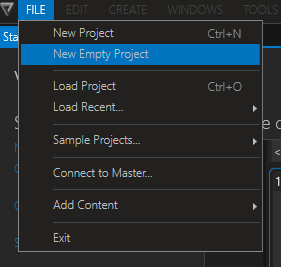
For this quick setup to work, it is important to choose NEW EMPTY PROJECT, as the other option holds pre-configured Canvas-Surface-Output setups, that might obscure the easy Destinations workflow.
2.import content: MAIN MENU > FILE > ADD CONTENT
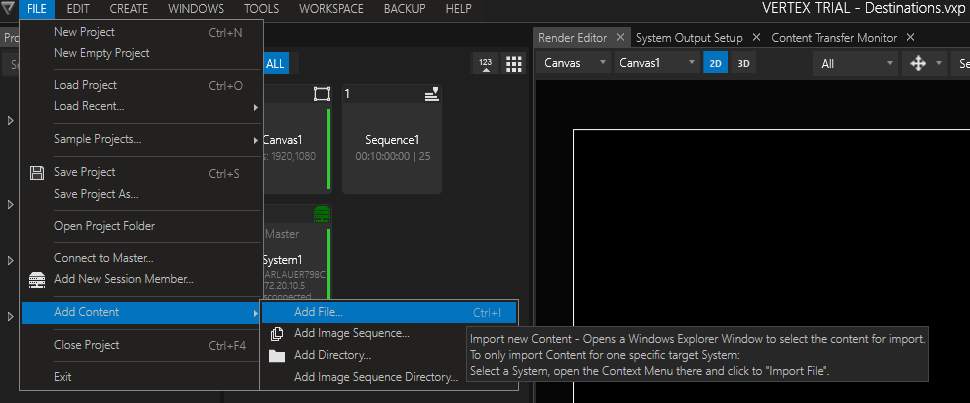
Choose a content file of your choice to import. Vertex supports a vast number of video and stills file formats. Read more on content import...
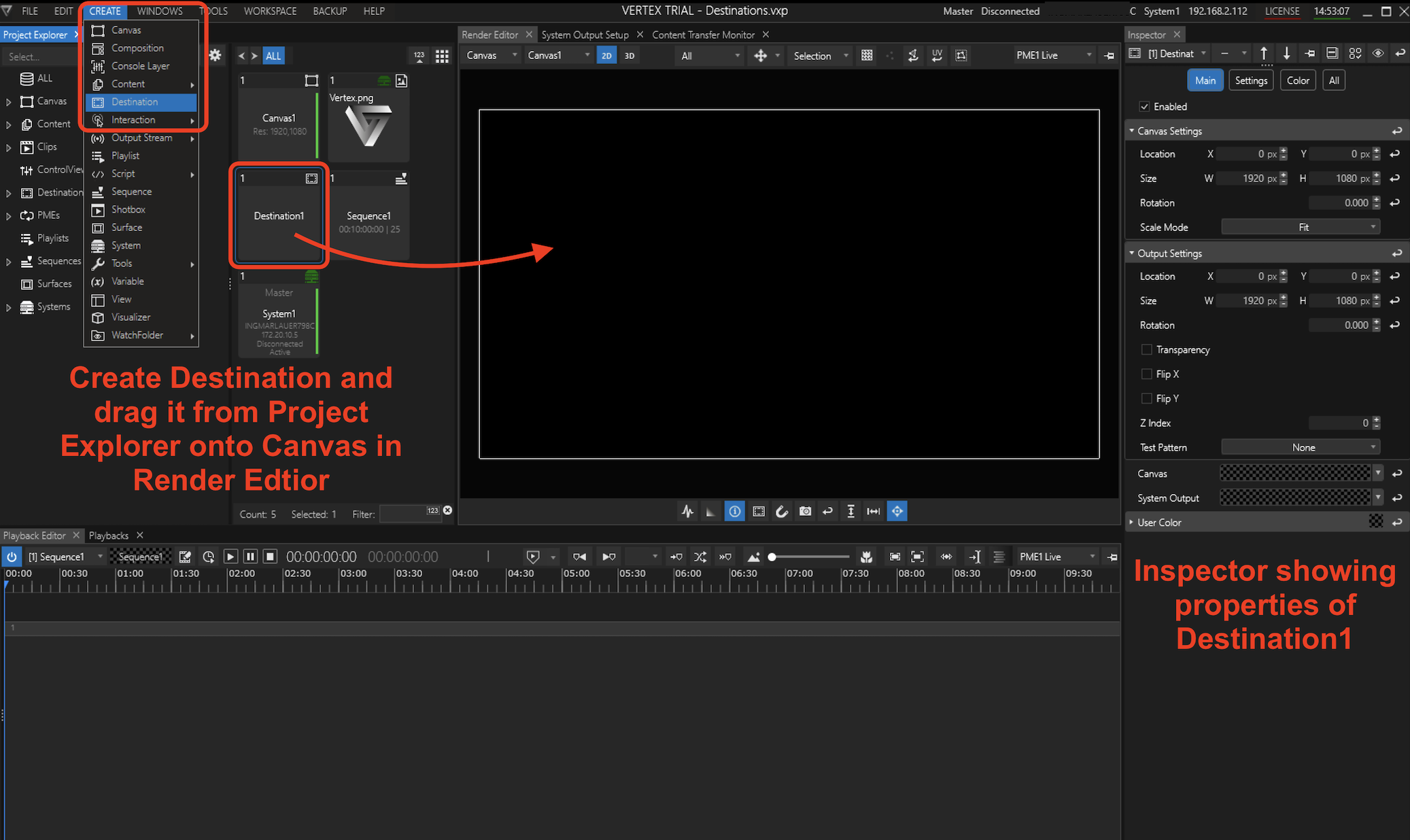
3.create Destination, assign & position on Canvas
4.drop and adjust content
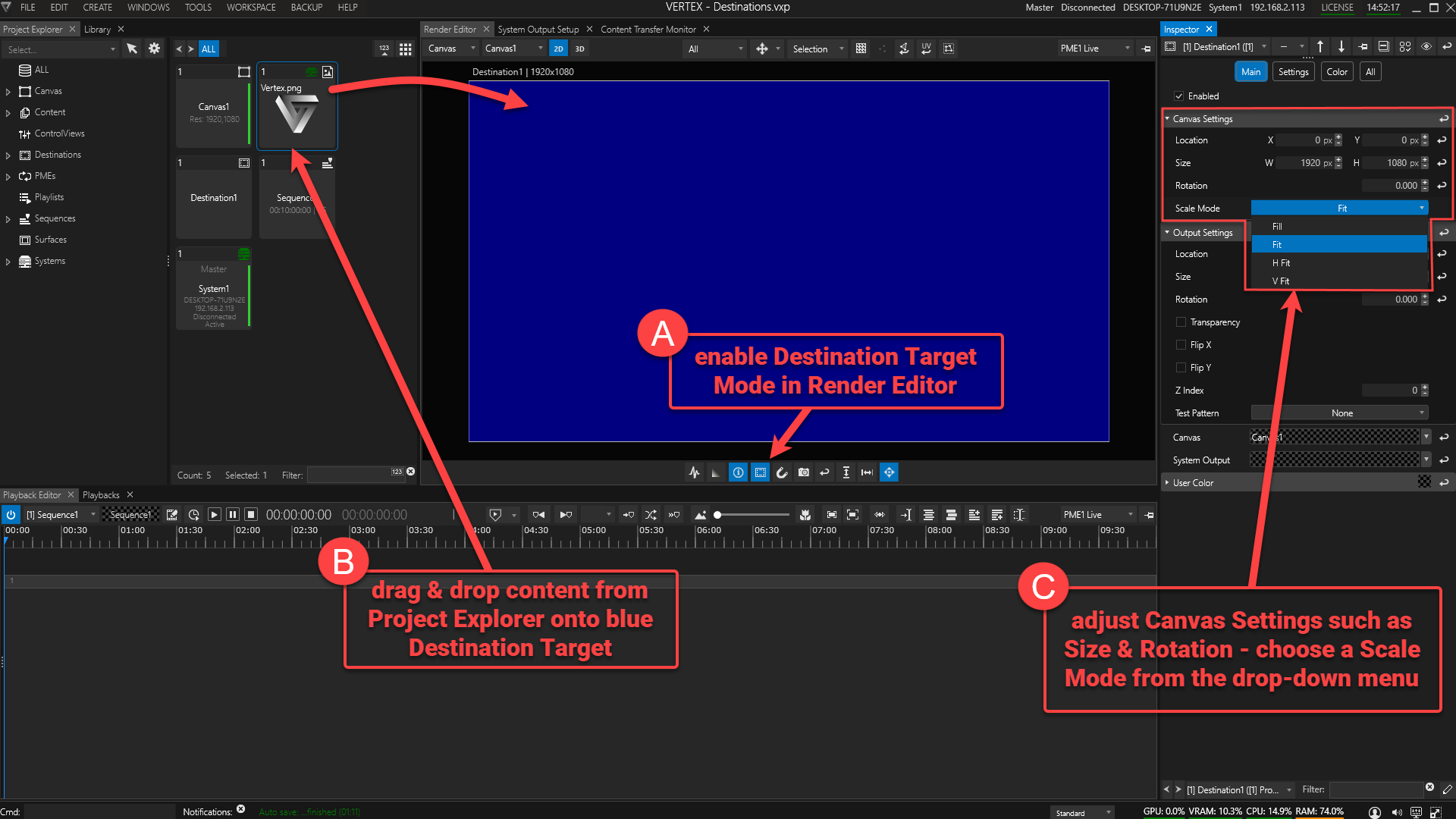
Adjustment Settings (C) are optional, als your content should fit right in with the default settings.
5.assign & adjust output
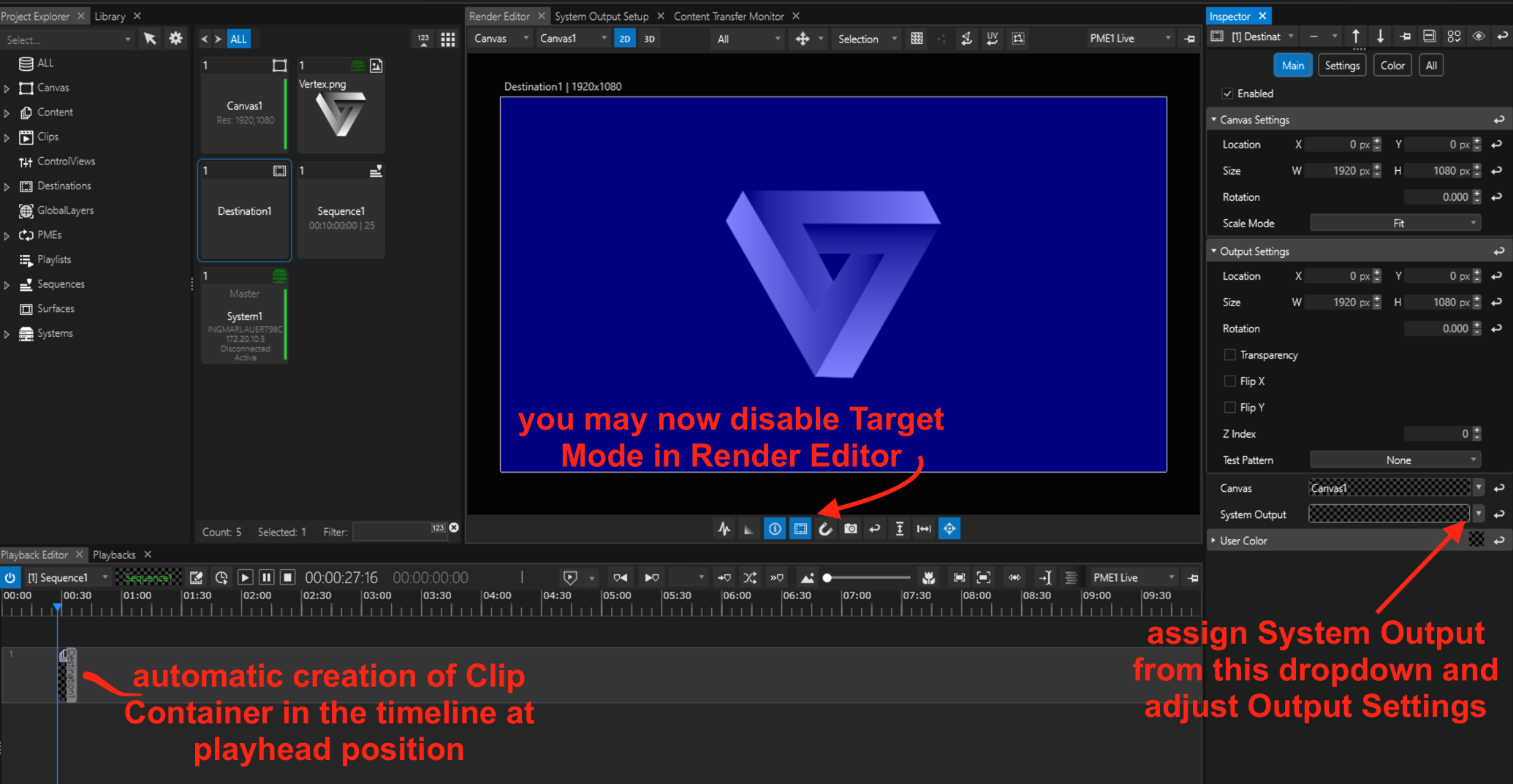
As soon as you have dropped your content onto the blue Destiantion area, Vertex will automatically create a Clip Container in your sequence at the playhead position. Read more on Clip Containers and Sequences...
Once you have an output assigned, Vertex will render your content in your full screen output window. To engage/ leave full screen rendering, press CTRL-F.
 If this is your first time with VERTEX and you're just trying it out on a laptop without an external display:
Press SPACE bar first to start the playback before going into full screen. Once the FS render window is on top of the UI, VERTEX will ignore the SPACE bar's transport commands (play/pause).
• Try out the next level: Vertex's smart Compositions feature with multiple Destinations.