•Script Commands are orientated on the VERTEX User Interface structure and workflow
•You can just trigger simple actions like Playback1.Play, switch settings or go deeper and operate with values
•Get to know the basic structure and the syntax and get familiar with some first script examples.
Simple actions
Enter short and simple Commands into a Scripting field or into the Command Line and trigger an action.
Playback1.Play
Playback2.Stop
Playback3.GotoCue 1
Orientated on UI Workflow
Script Commands are orientated on the UI Workflows of VERTEX. T
he syntax and structure should look very familiar to you if you already know how to use the software with the UI.
Almost every property into VERTEX can be scripted.
Example: Set Opacity of ClipContainer1 into Playback1 to a Value

Set Opacity of ClipContainer1 into Playback1 to 0.5
 +
+  +
+
Script Command:
Playback1.ClipContainer1.Opacity.Value = 0.5
Set System 1 to Fullscreen
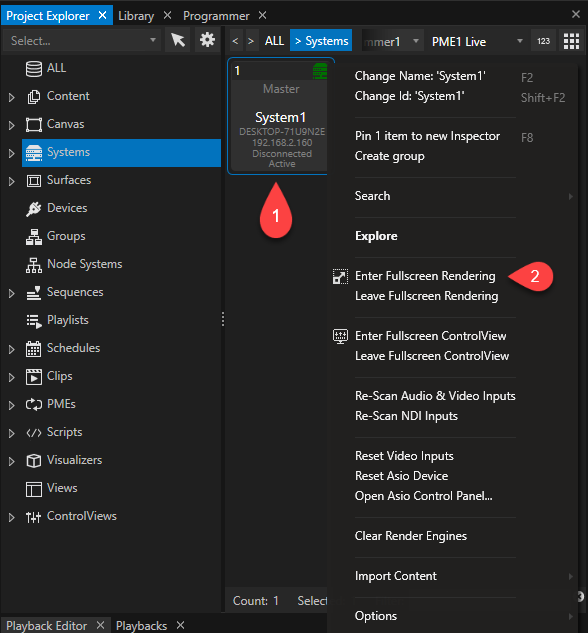

Set System 1 to Fullscreen
+
Script Command:
System1.EnterFullScreen
Disable Preview in Fullscreen for System1

Disable Preview in Fullscreen for System1
+ +
Script Command:
System1.Settings.DisablePreviewInFullscreen.Value = false
Auto Suggestion / Scripting Wizard
In every Scripting field into Vertex you get access to a Script Wizard that helps you with a list of all available Items, Commands and Actions
Use Shortcut "CTRL+ Space" into an empty line to open a full list of all available elements.
Enter a dot to open a list of all available child options and elements.
For every list item the expected parameters are shown.

Structure and Syntax
 The availability of Script Commands and syntax options depends on your VERTEX version
Please note that the availability of some Script Commands depends on the VERTEX version your currently are working with.
With every version, we improve and extend the software feature set - including script commands.
Not all script commands or options like local variables or script tags are supported from older versions
Basic structure
The next deeper level is initiated by a dot
Firstlevel.Secondlevel.Thirdlevel.
One script command per line: Use a new line for the next Script Command
Playback1.Play
System1.Settings.DisablePreviewInFullscreen.Value = false
Comments are made with double slash
//This is a comment
Value Operations
Value
Use to set or read a value
Example
Playback1.ClipContainer1.Opacity.Value = 0
FadeValue
Fade to a new value in a defined time- first parameter is value, second parameter is time in seconds
Example
Playback1.ClipContainer1.Opacity.FadeValue 1,2
ProgValue
read or created Value into Programmer
Example
Playback1.ClipContainer1.Opacity.ProgValue = 0
FadeProgValue
sets new value into programmer and fades to this value - first parameter is value, second parameter is time in seconds
Example
Playback1.ClipContainer1.Opacity.FadeProgValue 1,2
Assign Values
Value
use an equal sign to set to a new Value
Value = 1
Value = 2000
Value = 0.5
Value = 0,1,0.1 (for e.g. DMX Values that contains of r,g,b)
Colors
//RGB
Value = #123 111 100
//ARGB
Value = #50 100 100 100
//RGB as Hex
Value = #FFFFFF
//ARGB as Hex
Value = #30FF00FF
//normalized RGB
Value = 0.5,0.5,0.5
//normalized ARGB
Value = 0.5,1,1,1
//normalized RGB
Value = {R:1.0,G:0.1,B:0.5}
//normalized ARGB
Value = {A:0.5,R:1.0,G:0.1,B:0.5}
Value = {R:10,G:100,B:50}
Value = {A:255,R:10,G:100,B:50}
Checkboxes
true and false
Value = true
Value = false
Settings
Use the name that is used into inspector dropdowns ar property fields
Value = FreeSync
Value = System2
Allocate Text or URLs
Value = Hello World
Value = www.ioversal.com
Return a current Value
Value (without equals)
Just enter Value (or ProgValue) returns the current value of an item
Playback1.Clipcontainer1.Opacity.Value
The Return Value is e.g 0.5 when Clip Containers Opacity currently is 0.5
Use return Values also for an external request over the API
Return a Value from an item and assign it to another item
You can combine both variants - assign and return - to read one items value out and assign this value to another item
Set notes from Clip Container 1 as Text into Text Content2
Content2.Settings.Text.Value = playback1.ClipContainer1.UserProperties.Notes.Value
Do Settings and trigger Actions
For e.g. a System into your Project
System2.ControlViewer.Open
System1.WindowsShutdown
Local Variables
Defines a local variable. To the right of the "=" must be a single value (not a formula like e.g. the syntax for "Eval")
Set cnt = 1
Set cnt = Thisisatext
Assign a value from a property of your project to your local variable
Set cnt = Playback1.ClipContainer1.Opacity.Value
Eval
Defines or updates a local variable. The right side of "=" is evaluated as a formula (a so-called "expression").
Eval cnt = cnt + 1
Assign Values of other variables
Set max =100
Eval cont = cnt <= max
Enclose (nested) elements in square brackets (Unlike the syntax for "set").
Specify strings with single quotes.
Eval cnt = 'CNT: ' + Round([Playback1.ClipContainer1.Opacity.Value], 2)
// the variable cnt gets the (new) value based on a string and the rounded
// opacity value from ClipContainer1
Conditions
Follow the design concept of easy script commands, we have implemented simple conditional operations.
IfEqual
Executes a specified script if parameter a = b. Parameters: a, b, Script
IfEqual Sequence1.ClipContainer1.Opacity.Value, 0, Script2
IfGreater
Executes a specified script if parameter a > b. Parameters: a, b, Script
IfGreater Sequence1.ClipContainer1.Opacity.Value, 0, Script2
IfLesser
Executes a specified script if parameter a < b. Parameters: a, b, Script
IfLesser Sequence1.ClipContainer1.Opacity.Value, 1, Script2
IfUnequal
Executes a specified script if parameter a is not b. Parameters: a, b, Script
IfUnequal Sequence1.ClipContainer1.Opacity.Value, 0, Script2
Tags
Define Tags into a Script and Jump to this Tags
:Tag
Defines a marker into a Script - the tag name is preceded by a colon without a space. Tags must be placed at the beginning of the line
:start
:part3
:marker2
Goto Tag
Jumps to the line of a Tag inside a Script - the Tag name must be specified without a colon
Goto part3
IfGoto variable, tag
Jumps to a Tag if the condition - the value of the local variable - is true
We strictly recommend not to use top permanently poll and request for a value. This could slow down performance.
For such cases, we recommend to use Wiring/Triggering or a Node System
Set Variable1= true
IfGoto Variable1, start
Special Commands
Wait
wait´## seconds
Wait 10
WaitAll
wait for all executing child scripts to finish
WaitAll 10
Cancel
Cancels all running scripts
Cancel
log
logs the returned value - the result is shown in Script Monitor's Console or into notification window
use for e.g testing commands, preparing commands for the API...
log Playback1.Clipcontainer1.Opacity.Value
log a text
log thisisatext
log this is a text
logs a local variable or script parameter
Set variable1=50
log variable1
Call renamed items
An item into VERTEX could be called by a script with its Type and ID or its name. Both will be accepted.
Example:
Device1 ( a 8 Bit Dimmer) was renamed to "Dimmer1"
The device can be called with both names:
Dimmer1.Settings.StartAddress.Value = 3
Device1.Settings.StartAddress.Value = 3
Examples
Start Playback1
Playback1.Play
Stop Playback 3
Playback2.Stop
Pause Playback3
Playback3.Pause
Run Script 1
Script1
Show the notes of Clip Container 6 from Sequence1 as Text of Textcontent item "Text1"
Text1.Settings.Text.Value = Sequence1.ClipContainer6.UserProperties.Notes.Value
Fade Mix Level of Playback1 into PME Live to full - fade time should be 2 seconds
pme1.Playback1.MixLevel.FadeValue 1,5
Set Opacity for Clip Container 1 to Value 1
ClipContainer1.Opacity.Value = 1
Set Background Color of Clip Container 1 to Color Red =0.5, Blue= 1, Green = 1, Alpha = 1
Sequence1.ClipContainer1.BackgroundColor.Value = 0.5,1,1,1 //normalized ARGB
Fade Mix Level of Playback1 into PME Live from to full - fade time should be 2 seconds
PME1.Playback1.MixLevel.FadeValue 1,5
Set Network Adapter for Art-Net™ on System 1 to "ETHERNET2"
System1.Settings.ArtNetAdapter.Value = ETHERNET2
Reset Video Inputs of System 2
System2.ResetVideoInputs
Reset Video Inputs of System 2
System2.ResetVideoInputs
Change the label text of Label 1 in ControlView1
ControlView1.Controls.Label1.Settings.Caption.Text.Value = "this is a new label text"
Perform a Click on Button 1 of ControlView1
ControlView1.Controls.ClickButton1.Click
Return the current Page that is displayed by ControlViewer1
ControlViewer.GetPage
Switch to Page 2 of the current control View. Also works as script for e.g. button in ControlView Editor (Run Mode)
ControlViewer.GotoPage Page2
Delete Label 1 on Page 1 of ControlView1
ControlView1.Pages.Page1.Label1.Delete