•VERTEX' DMX Recorder captures incoming Digital Multiplex signals allowing you to record lighting sequences
•these are stored in a designated VDMX file for later use
•DMX recordings require a valid DMX Routing
DMX Recording Workflow
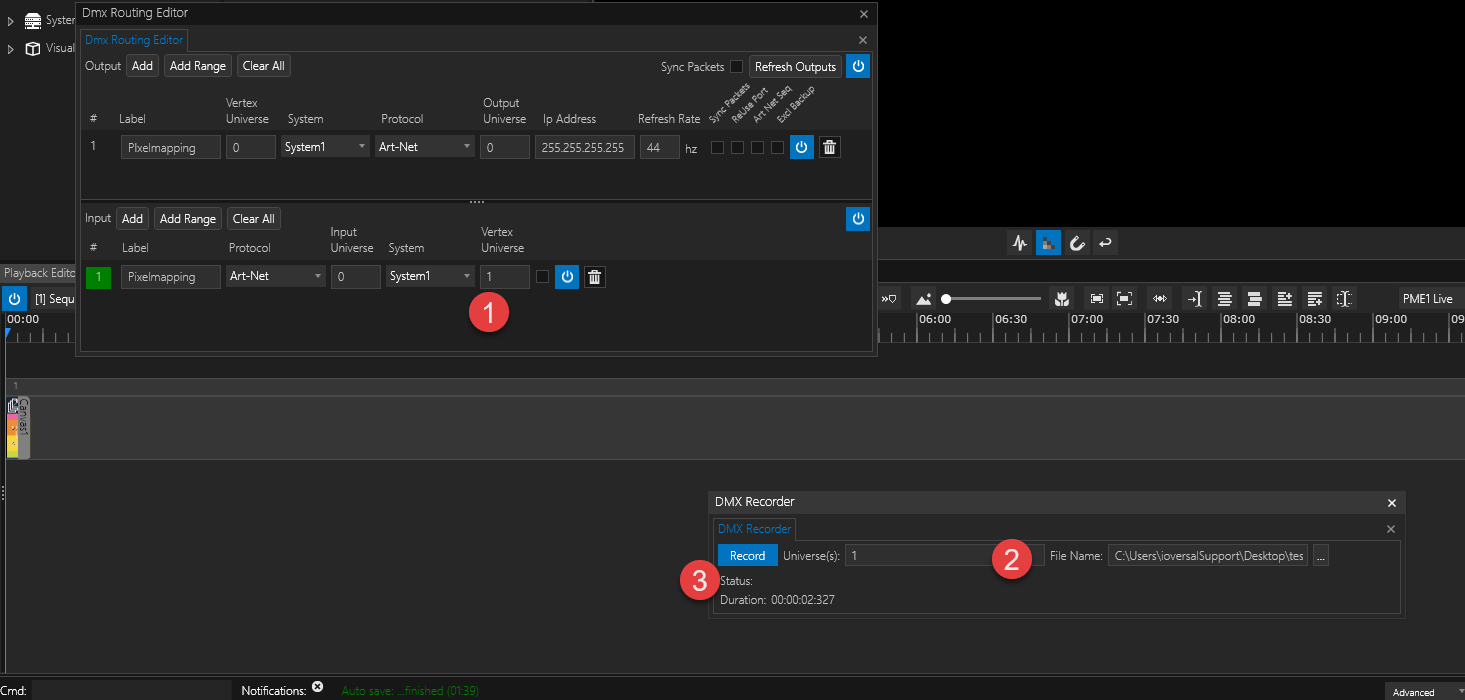
1.Make sure your DMX Routing is properly set up.
2.To open the DMX Recorder go to MAIN MENU > WINDOWS > I/O > DMX Recorder.
Next, select the VERTEX Universe(s) that you'd like to record the signal from. Multiple universes can be separated by comma or a space (e.g. '1,2' or '1 2'). Ranges from '1-5' are supported.
Klick on the ...-button to set a name and location for the VDMX file to be created.
3.Klick the Record/ Stop button to start/ stop recording.
DMX Recorder Script Commands
•There are 3 Vertex script commands that start & stop the recording of DMX input signals.
•They can be found on System level.
•The START command requires setting parameters for the file path and the ID of the Vertex Universe(s). Ranges from 1-5 are supported.
System1.StartDmxRecording C:\Users\...\Desktop\RecDmx.vdmx, 1
System1.StopDmxRecording
System1.StopDmxRecordingAddToProject
•The third script command adds the finished recording to your content items. You can conveniently drag it from the Project Explorer into your Sequence, Playlist etc.