•A Global Layer allows users to create a quick-access rendering layer.
•A Global Layer renders its content independently from Sequences, Playlists and Shotboxes.
•Possible use cases: either for graphic overlays such as watermarks, logos or lower thirds...
•... or to temporarily overwrite the global values during your show by creating Clip Containers from Global Layers.
Working with a Global Layer
1.Go to MAIN MENU > CREATE > Tools > Global Layer and once the Global Layers manager is added to the Project Explorer, you can create one from there by accessing the its context menu with a right-click.
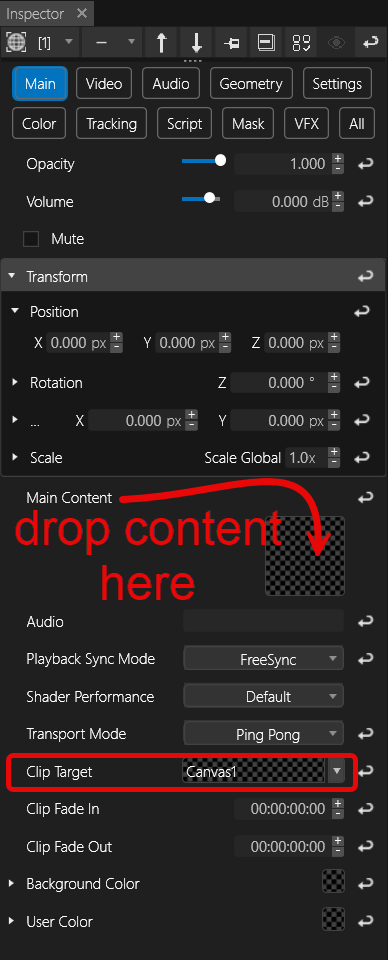
2.Go to Project Explorer and select the Global Layer to focus it into the Inspector for initial settings:
- Add content by drag & drop; either onto Inspector target or on top of the Global Layer item in Project Explorer.
- Set the Clip Target to assign Canvas, Output or Visualizer depending on where the content should be rendered.
- If your content is a video such as an animated logo that needs to be rendered playback independently, set its Playback Sync Mode to FreeSync.
- Set transform properties as needed.
Global Layer as a Clip Container

When Global Layers are used in a Playback, its Clip Containers temporarily overwrite the values of the Global Layer.
Drag a Global Layer from Project Explorer and drop it into the Playback Editor: A new Clip Container is created for the Global Layer.
You may assign content or set values to the Clip Container's properties that are different from the original Global Layer item. These properties will be overridden for the Clip Container's duration.
Render Priority of Global Layers
Go to Project Settings > Rendering tab to set the Global Layer Render Priority. By default it is set to low meaning Global Layers are placed behind Playbacks. Set it to high if your Global Layers need to be rendered topmost - for instance if you are working with watermarks, logos or lower two-thirds.
Multiple Global Layers will sort with their ID ascending, meaning #2 will be on top of #1 - similar to the behavior of multiple Playbacks.
When the same Global Layer is used in Clip Containers across multiple Playbacks, the temporary value override will be affected by Playback Sort Mode (Project Settings).