•Each VERTEX System can display ControlViews in fullscreen - this fullscreen window is called Control Viewer.
•Depending on your VERTEX license, it is possible to run both on the same system: a Control Viewer and a video rendering fullscreen window for your System Output.
•It is also possible to have a transparent ControlView layer on top of your fullscreen video rendering window or on your Windows desktop.
Settings
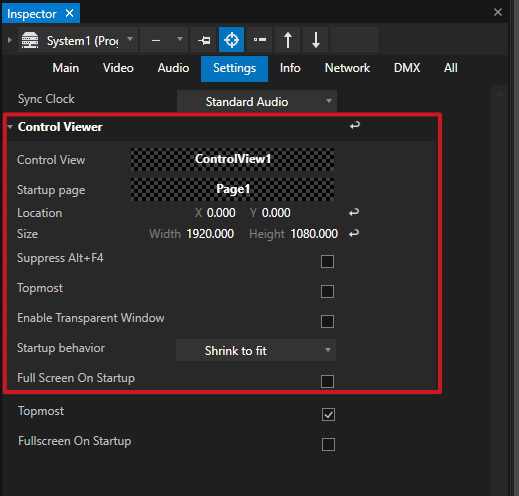
Go to System > Settings > Control Viewer
|
Location |
positions the fullscreen ControlViewer on your virtual Windows desktop in top-left start coordinates. |
Size |
sets the Control Viewer's size. |
|
Enable Transparent Window |
allows for the Control Viewer to act as a transparent layer. Prerequisite for this transparency, however, is a transparent background color. Access the ControlView's Style tab in the Inspector and set the Background Color alpha channel to transparent. |
|
Full Screen On Startup |
ControlViewer goes to fullscreen immediately when the project is loaded |
|
Suppress ALT+F4 |
disables this shortcut to prevent the accidental closing of ControlViewer in FS |
|
Topmost |
enables FS Control Viewer to remain topmost window - this setting is essential, if you would like to keep using a transparent ControlViewer window on top of other applications. |
|
Startup Behavior |
options for scaling & focusing of the FS Control Viewer on startup |
|
Control View |
select the particular ControlView for startup behavior |
|
Startup Page |
select the particular ControlView Page for startup behavior |
Open Control Viewer In Fullscreen With These Options:
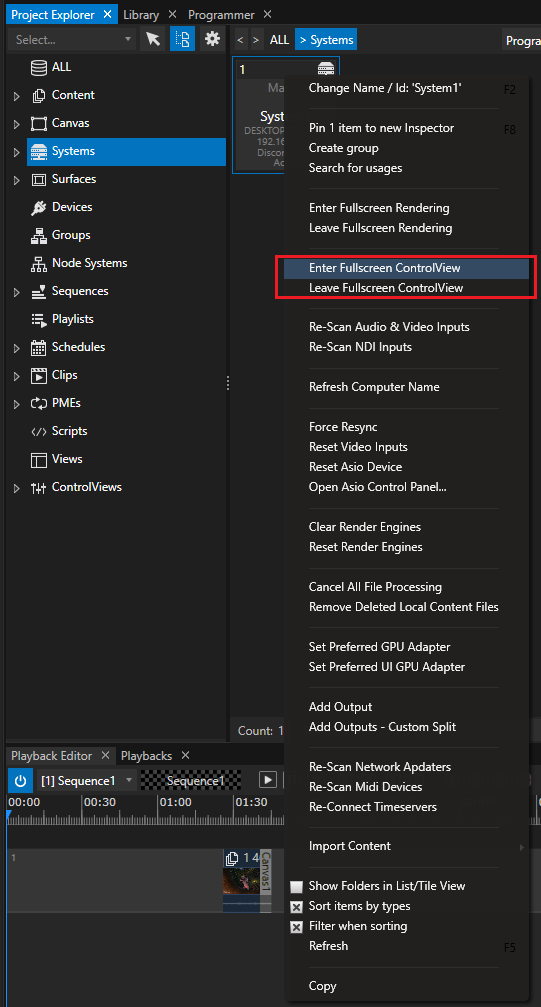
• Project Explorer > System > context menu
Right-click on any system and select "Enter Fullscreen ControlView"
If working with multiple Systems in a session, you can remotely set another System's Control Viewer to fullscreen mode.
Also, there is a menu entry in the same location for leaving fullscreen mode.
•The shortcut CTRL + F5 opens the Control Viewer on your local System.
Press the same shortcut on your local System to close.
•Control Viewer Button in Status Bar
opens the Control Viewer on your local System in Full Screen.
Use the shortcut CTRL+ F5 to close.

• Script Commands to open and close the Control Viewer on any system in your session:
System1.ControlViewer.Open
System1.ControlViewer.Close
or just for your local system:
ControlViewer.Open
ControlViewer.Close