Release Notes 2026 R2
New Features
Content: New Graphics Item added >
Content: QR Code modes for non-http-URLs added >
Content: Video Transcode CropRegion added >
Content: Support for Ross Xpression Video codec XpVc decoding added >
Tools: Surface Calibration (Camera supported projector re-calibration) added >
Tools: Surface Blend Map generation for 2D projections added >
Tools: Surface Blend file adjustments for Gamma, Offset and Width added >
Licensing: License Dongle stacking added >
Licensing: Mjpeg streaming options for Director and Designer License added >
Applications: Tuio Touch Injector added >
UI: Quick Access Menus added >
Audio: Preview Audio PME selection added >
Fixes & Brushes
Playback: Rendering improvements
Playback: Preloaded Clip seek time reduced
Playback: Adaptive Resync optimized
Playback: Wrong Frame flash on seek fixed
Playback: Optimized NotchLC decoding to support uncompressed encoded files
Playback: NotchLC last frame skip fixed
Playback: Geometry Modifier performance improved
Playback: PlaybackClip handling improved
Render Editor: AllCanvas Move multiple Canvases resetting X/Y fixed
Render Editor: Visualizer Interaction added
Render Editor: System All Output Mode Global Layer & Console Layer hierarchy fixed
Content: Generative Mask Content reset on TextureSize fixed
Content: Ventuz support discontinued – breaking Change
Content: Collection Multi-Selection Assign TargetSystems fixed
Content: Collection AddContent add to Collection fixed
Content: Project Explorer SortByColoumn Fixed
Content: ContentManagementWindow Generic Content interrupting Multi-Selection-Action fixed
Content: Seach/Filter showing not matching results fixed
Content: WebBrowser support for cookies added
ControlView: Drag Drop Parameter to Page optimized
ControlView: Upload Button Upload speed increased
ControlView: Upload Button ScriptCode execution in WebView fixed
ControlView: ClickButton Status Indicator hidden by default
Cue: properties added to execute Cue Scripts on FadeTo
Cue: GotoNextCue ignore Cue if one Frame ahead fixed
Devices: Tuio Touch Injector commands added
Devices: Rod308 device improved
Devices: Midi devices fixed to support latest Windows11 updates to Midi drivers
Devices: connection status optimized
Devices: OSC Receiver device “Add Property” added
Devices: Barco UDM UDX F-Series commands fixed
Devices: TUIO Sender improved
DataTable: synchronization to session members changed to partial updates
DMX: DMXOutputRouting sACN Priority settings added (vis scripting only)
DMX: DMXID Value change via Script update FolderFileBank fixexed
Core: AI Assistant optimized
Features
Content: new Graphics item added
With Graphics, Vertex introduces a new generic content type for building lightweight, modular graphic compositions directly inside a single content item.
A Graphics content item can contain multiple graphic objects, including shapes such as circles, rectangles, lines, softedges, masks, text, images, and other supported generic graphics elements. These objects are managed together as one clip during playback, reducing the need to place each element on a separate track.
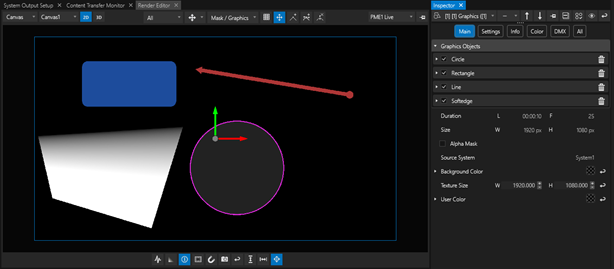
This is useful for compositions that require several simple graphic elements, such as masks, highlights, overlays, pointers, background panels, or combined design elements. By consolidating these into a single Graphics content item, users can simplify their timeline structure, reduce track usage, and improve render efficiency compared with building the same composition from multiple independent clips.
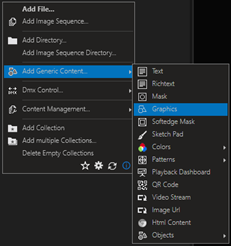
Find the new Graphics content item in the menu for adding content:
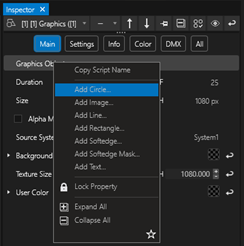
Individual Graphics sub-objects can be added from the Inspector by right-clicking on the “Graphics Objects” group. Created objects can be re-ordered, configured, and deleted within this group:
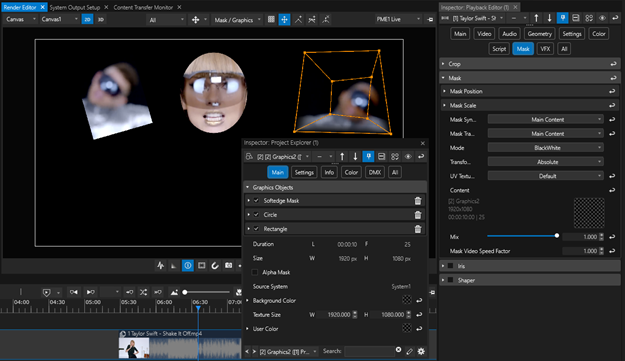
Graphics Content can also be used as a Mask Content inside Clips and Surfaces, allowing multiple areas to be masked or soft-edged, instead of relying on only one Mask or Softedge-Mask assigned to the item’s Mask channel. The Render Editor “Mask Edit” mode has been enhanced to also allow visual editing of the Graphics objects.
Content: QR Code modes for non-http-URLs added
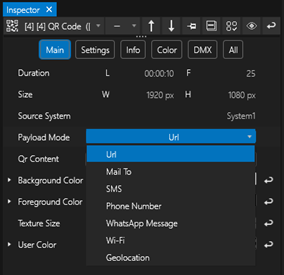
Generic QR Code content has been limited to URLs in the past. We have added a property called Payload Mode to the settings of the QR Code content: choose between referenced Url, email address, SMS, phone number, WhatsApp Message, Wi-Fi or geolocation to allow a larger variety of QR content.
Content: Video Transcode Settings - CropRegion added
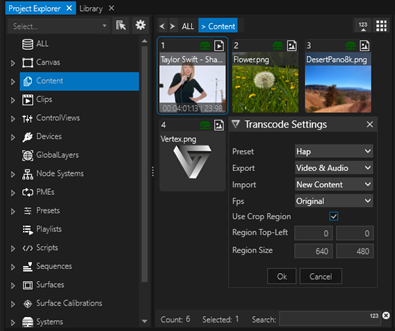
The video transcode workflow has been enhanced with Crop Region support. When transcoding video content, users can now enable Use Crop Region and define a specific rectangular region of the source file using Region Top-Left (start pixel) and Region Size (width and height) values.
This allows only the required portion of a larger source video to be exported or imported as new content, instead of transcoding the full native resolution file.
A common use case is working with high-resolution source material that exceeds the performance envelope of a single Vertex System. For example, a received content file may be delivered in a large native resolution, but the final playback design requires the content to be split across multiple dedicated Vertex Systems. With Crop Regions, each system can receive only the slice of the original video that it needs to render, reducing the resulting content resolution, playback load, and system bandwidth requirements.
This is especially useful for large canvas workflows, multi-system playback setups, LED wall segmentation, and other scenarios where a single source file must be distributed across several output regions. By cropping during transcode, users can create optimized content segments directly from the original file while preserving the intended visual alignment across the full composition.
Content: support for Ross Xpression Video Codec XpVc decoding added
Vertex now supports video content encoded with Ross XPression XpVc. The codec is designed for faster encoding and decoding and enables UHD/4K video asset workflows in XPression environments.
This improves interoperability between Vertex and Ross XPression production pipelines. XPression-rendered or XPression-prepared video assets can now be imported, transcoded, and played back in Vertex without requiring an intermediate conversion step to another mezzanine or delivery codec.
This is especially useful for facilities that use both XPression and Vertex in the same production workflow. Existing XPression video assets can be reused directly in Vertex projects, reducing preparation time, avoiding unnecessary quality loss from additional transcoding, and simplifying content exchange between graphics and playback systems.
Systems intended to decode XPVC assets require installation of the codec.
Devices: RSS Device added
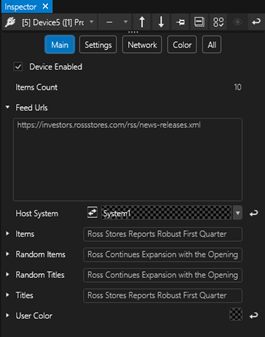
Vertex now includes a new RSS Device for reading and exposing RSS feed content directly inside a project.
The device can be configured with one or more feed URLs. Once enabled, Vertex retrieves the feed data and makes the received entries available as device properties, including ordered items, titles, random items, and random titles. Access to single entries is available via dedicated device methods in Vertex scripting.
This allows RSS-based text data to be used in Vertex content and control workflows without requiring a custom script or external data conversion step. Typical applications include automated news tickers, headline displays, venue information boards, corporate communications, sports or event updates, and public information signage.
Tools: Surface Calibration (Camera supported projector re-calibration) added
Ross now offers a native Vertex camera-based Surface Re-Calibration for projector alignment workflows. This feature allows a calibrated surface to be monitored and re-aligned using an IP-camera input and projected calibration patterns, helping maintain accurate image placement in fixed single- and multi-projector installations.
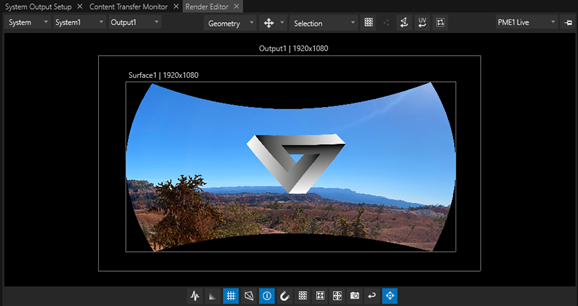
The workflow uses adjustable calibration patterns and camera image processing to detect how the projected image appears on the physical surface compared to the initial setup. Instead of relying only on a technician manually adjusting alignment points, the calibration process becomes faster, more repeatable, and less dependent on individual operator skill.
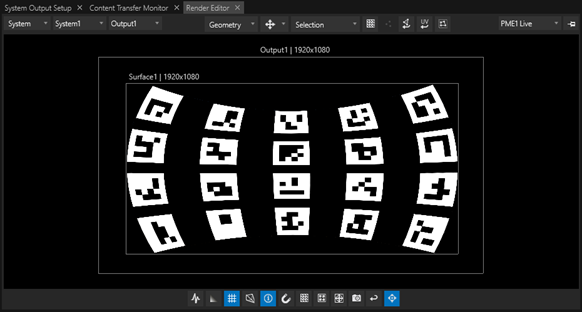
This is particularly useful for fixed installations where reliable long-term alignment is required, including museums, theme park rides, attractions, ice rink- and court projections, and other projection-mapping environments with single or multiple projectors. In these applications, even small mechanical shifts, vibration, maintenance activity, temperature change, or projector replacement can cause visible alignment errors. Camera-based recalibration provides a more repeatable way to restore the intended projection alignment.
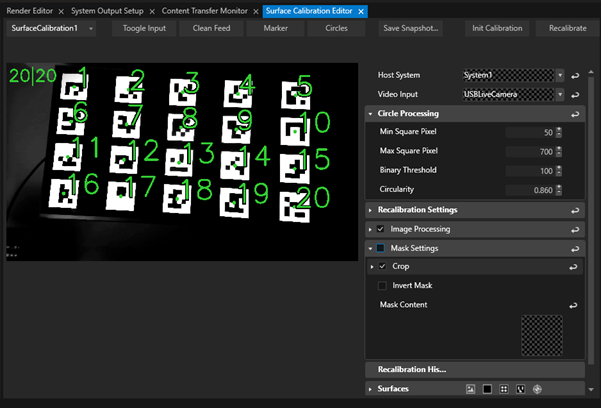
Ross can provide suitable PoE camera options on request, with different lens options available depending on the installation geometry, camera distance, field of view, and calibration coverage requirements. For Ross-led projects, system design and on-site services can also be provided to help specify camera placement, lens selection, calibration workflow, and commissioning requirements.
The Surface Calibration Editor includes tools for marker configuration, detection thresholds, camera input processing, masking, cropping, and a recalibration history. This allows operators and commissioning teams to configure the detection process for the physical installation and maintain a record of calibration activity over time.
Tools: Surface Blend Map for 2D projections added
Vertex Quick Blend is a great tool to automatically calculate surface edge blending parameters based on surfaces overlapping on a canvas. However, the algorithm is limited to either calculate horizontal blend zones or vertical blend zones. When it comes to two dimensional projector setups, e.g. a four projector arrangement in a 2x2 grid, edge blending parameters are required to be set manually.
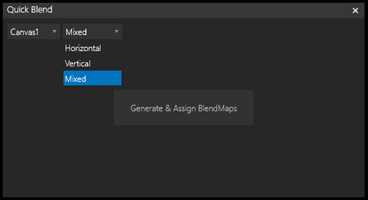
With 2026 R2 we are introducing a new feature in the Quick Blend Tool: Generating Blend Maps for mixed 2D setups.
Instead of calculating Edge Blending parameters, individual BlendMap files are generated for every Surface that is linked to the selected Canvas. Files will be automatically assigned to the Surfaces BlendMap property.
Tools: Surface Blend file adjustments for gamma, offset and width added
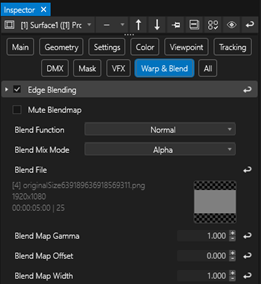
Blend Maps assigned to Surfaces can now be manipulated by adjusting its Gamma, Offset and Width parameters. In addition, the entire Blend Map can be Muted.
This applies to Vertex generated Blend Maps, but also to 3rd party provided Blend Maps.
Licensing: License Dongle stacking added
Vertex Licenses activated on Smart Dongles will allow stacking from 2026 R2 onwards. Example: three single Smart Dongles with e.g 1 x Node-2CH, 1 x Node-1CH and 1 x Node-1CH activated on the Dongles and connected to the same Vertex System will merge to a Node-4CH license for the time being connected to the System.
Licensing: Mjpeg streaming options for Director and Designer License added
Streaming Live-Input contents with the Vertex ControlView to WebClients is now also available to Director and Designer Licenses. The Mjpeg Streaming settings can be activated and managed in the Live-Inputs settings.
Applications: Tuio Touch Injector added
Vertex now includes a TUIO Touch Injector application in the Vertex Service Tray. This utility provides a convenient way to receive and process TUIO touch input and map it into a defined touch area for interactive workflows and controlling 3rd party applications on remote systems.
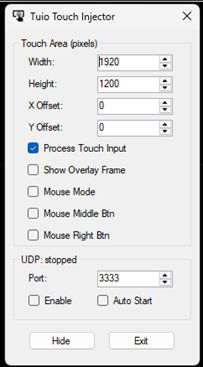
The Touch Injector allows users to define the active touch region by setting the touch area width, height, and X/Y offset in pixels. This makes it possible to map incoming touch data to the required output resolution and display region.
Vertex now supports Quick Access for context menus, allowing users to reduce large context menus to the commands they use most often.
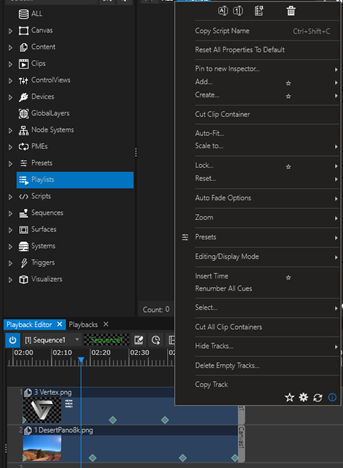
Users can hold Shift and click a menu item to add or remove it from the Quick Access Menu. Items included in Quick Access are marked with a ☆ indicator, making them easy to identify and manage.
Once Quick Access items have been configured, holding Shift while opening a context menu shows only the selected Quick Access items. This provides a shorter, task-focused menu and reduces the time spent searching through commands that are not needed in the current workflow:
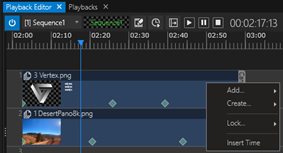
An additional Prefer Quick Access Menus option is available to invert the behavior. When enabled, context menus open directly in Quick Access mode by default, while holding Shift shows the full menu instead.
If no Quick Access items have been stored for a menu, Vertex continues to show all menu items. This ensures existing workflows remain unchanged until users explicitly configure Quick Access behavior.
Audio: Preview Audio PME selection added
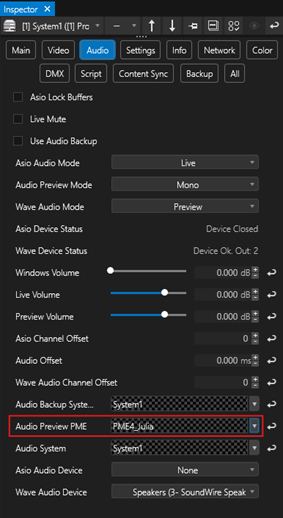
Vertex now allows each System to define which PME is routed to the Preview Audio path.
When no PME is selected, the behavior remains unchanged: the Preview Audio engine receives a mixdown of all PME audio feeds. This preserves existing project behavior and ensures compatibility with previous workflows.
Now, users can select a specific PME to solo the audio monitoring from. Only the audio feed from that PME is routed to the Preview Audio engine of that System. This is particularly useful in multi-operator environments, where each operator may be working independently in a different PME.
For example, in a shared production setup with multiple operators controlling different PMEs, each operator can now monitor only the audio relevant to their own working area instead of hearing the combined audio from all PMEs. This improves monitoring clarity, reduces distraction, and provides a more focused preview workflow for complex multi-PME productions.