•This feature is supported in VERTEX 2026 R2 and later versions.
•Surface Re-Calibration uses a fixed calibration camera to detect projected marker patterns and restore Surface alignment after a projector has shifted.
•The workflow uses CalCam, an optional VERTEX calibration camera hardware purchase, in conjunction with the Surface Calibration Editor.
Surface Re-Calibration is intended for installations where the Surface setup, warping & blending are already complete. It is not used to create the initial projection alignment. Instead, it stores a known-good calibration state and uses that state for re-calibration at a later point.
CalCam
•CalCam is an industrial calibration camera designed for continuous operation.
•The device is passively cooled, - therefore it is normal to emit some heat.
•It is powered and connected via Ethernet, and is treated like a video input in VERTEX.
•Required driver and configuration app are included in the advanced options of VERTEX installer.
 Mount CalCam in a fixed position:
For reliable and reproducible re-calibration, the camera must remain in the same position between initial calibration and re-calibration!
Setup Recommendations
•Use a clean, stable camera view. Marker detection can be affected by moving lights, shadows, reflections, heat shimmer, or objects blocking the camera view.
•Use safe zones in your Canvas-Surface-Output setup: fill only 90% of the frame. This gives VERTEX enough margins to compensate for minor re-calibration shifts.
•The projected markers identify the grid position. The circles increase accuracy by allowing VERTEX to calculate the exact center point of each marker.
CalCam Configuration
1.Install CalCam driver and configuration tool:
If you haven't done so already, run the VERTEX installer, expand advanced options and select CalCam installation.
2.Connect CalCam to a PoE-supported LAN port.
3.Open the CalCam device configuration utility:
C:\Program Files\ioversal\Vertex\<version>\CalCam Device Config.exe
4.Select Assign Free Persistent IP.
5.Assign an IP address in the same range as the VERTEX session.
6.In VERTEX, add CalCam from the system input devices in Project Explorer.
Creating a Surface Calibration File
1.Complete the warp and blend setup for the required surfaces. Include safe zones!
2.Go to MAIN MENU > CREATE > Surface Calibration.
3.Open the Surface Calibration Editor:
Go to MAIN MENU > WINDOWS > TOOLS > Surface Calibration Editor (or open the editor from the newly created project item in the Project Explorer).
Follow the next steps as shown in the screenshot of the editor and explained below:
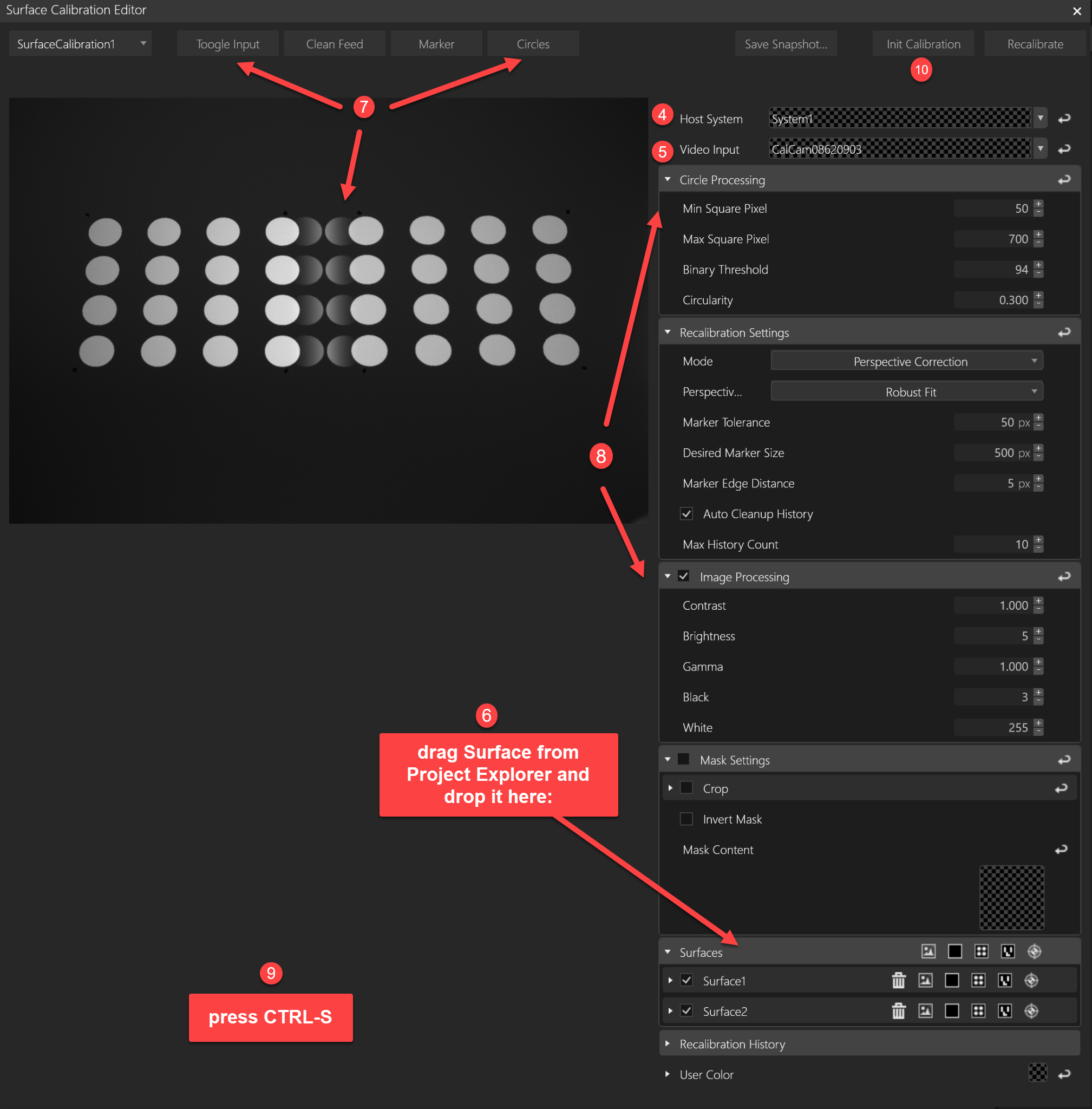
4.In Host System, select the system that contains the CalCam input.
5.In Video Input, select CalCam.
6.Drag the required surfaces into the Surfaces section.
7.Toggle between Input view to Circle view...
8.... and use Image Processing and Circle Processing to adjust the camera image until the markers are detected reliably.
9.Save the project.
10.Click Init Calibration to store the initial calibration data in the project item SurfaceCalibration.
Re-calibrate Surfaces
Use re-calibration when one or more projectors have shifted after the initial calibration.
1.Open the Surface Calibration Editor.
2.Confirm that Host System and Video Input are set correctly.
3.In the Surfaces section, enable the surfaces to recalibrate.
4.Disable any surfaces that are still aligned.
5.Click Recalibrate.
Only selected Surfaces will be re-calibrated. If the projection of an individual surface still appears correct, it's safe to deselect that surface to skip its processing.
Re-Calibration Settings
Setting |
Description |
|---|---|
Mode |
Selects the recalibration method. Perspective Correction is the default. 4 Point Perspective is generally better for curved screens or uneven projection planes, such as domes or building facades. |
Perspective Mode |
Selects the fitting method. Options include Standard Fit, Robust Fit, and Median Fit. |
Marker Tolerance |
Sets the allowed deviation between detected and expected marker positions. |
Desired Marker Size |
Sets the target size for projected markers. |
Marker Edge Distance |
Sets the minimum marker distance from the edge of the marker area. |
Auto Cleanup History |
Automatically removes older recalibration history entries. |
Max History Count |
Sets the number of recalibration history entries to keep. |
Masking the Camera View
Use a mask if the CalCam image contains obstructions or unwanted artifacts near the edge of the view.
Recommended workflow:
1.Select Clean Feed view.
2.Click Save Snapshot.
3.Import the snapshot as Mask Content.
4.Enable Crop or Invert Mask as required.
5.Verify that valid markers remain fully visible and unwanted areas are excluded.
Recalibration History
The Recalibration History section stores previous recalibration states with date and time stamps. Use it to return to an earlier state if the latest recalibration does not produce the required result.